Rotate GIF - 90, 180 Degrees or Any Angle
Turn a GIF left or right, make a half turn, or set any angle, and watch it play while you do. Nothing is uploaded.
 Download GIF
This tool rotates a GIF in your browser: a quarter turn left or right, a half turn, or any angle you type. The GIF keeps playing while you turn it, so you see the result before you download. A quarter turn is done on the file itself, which leaves the quality exactly as it was.
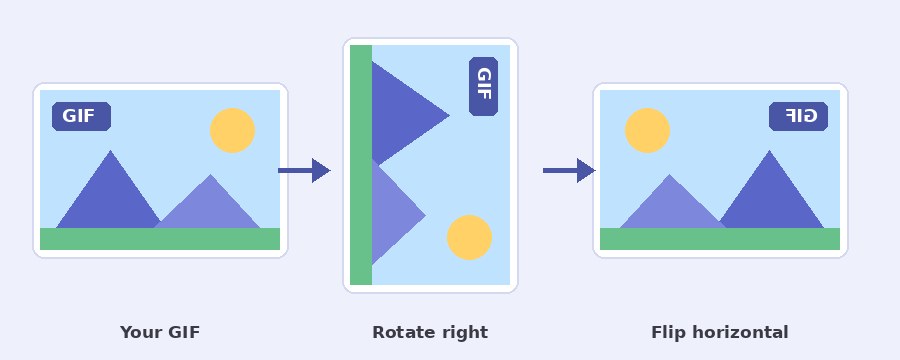
How do I rotate a GIF?
- Select GIF. Click the button or drop the file on the box. The GIF opens on a stage and starts to play.
- Tap a button. Rotate left and Rotate right turn it by 90 degrees each time, so two taps make a half turn and four bring it home.
- Or set any angle. Move the slider under Any angle, or type the degrees in the box next to it. A minus number turns the GIF left.
- Download GIF. The line under the stage tells you the new size in pixels first. Start over puts everything back.
Does rotating a GIF lower the quality?
Not for a quarter turn or a half turn. For those the tool moves the pixels of the file you gave it and redraws nothing, so every colour, every frame and the timing stay exactly as they were. The line under the stage says so, and the download says it again.
Any other angle is different, because a tilted pixel no longer lands on the grid. Each frame is drawn again at the new angle and the GIF is written fresh, with up to 256 colours a frame as the format allows. On photos and video clips the change is hard to see. On small pixel art the edges get a little softer, so stay with quarter turns there if you can.
What happens to the corners at an odd angle?
Tilt a rectangle and its corners stick out while the frame gains empty corners. The Corners card appears as soon as the angle is not a quarter turn, with two answers. Show it whole makes the GIF bigger so the whole tilted picture fits, and the empty corners take the Corner colour you pick, or stay see-through when Keep transparent background is ticked. Fill the frame keeps the size of the GIF and zooms in until no corner is empty, which cuts a little off each edge.
For a small straightening job, a degree or two on a crooked clip, Fill the frame is the one to use. For a bold tilt on a sticker or a logo, Show it whole with a see-through background looks right. If you would rather cut the edges yourself afterwards, the GIF cropper does that.
Which way should I turn it?
A clip filmed with the phone on its side needs one tap: Rotate right when the top of the picture points left, Rotate left when it points right. A GIF that is upside down needs two taps on either button, a half turn. A horizon that is a few degrees off needs the slider, not the buttons.
A mirror image is a different job. If the writing in a clip reads back to front, or a character should face the other way, no turn will fix it, and the flip GIF page is the place for that. When the turned GIF has to fit a set width, the GIF resizer takes it from there, and the GIF compressor brings the file size down.
Your GIF is turned on your device
Nothing is uploaded. The file is opened, turned and written by the page itself, in your own browser. No server sees your GIF, there is no account and no watermark, and closing the tab leaves nothing behind. The page downloads its own code and sends nothing back.
Frequently Asked Questions
Does the speed of the GIF change?
No. Every frame keeps the time it had, so the turned GIF plays at the same speed and loops the same way. The number of frames stays the same as well.
Can I rotate a video and get a GIF?
Yes. Drop an MP4 or WebM in the box. It is read at 10 frames a second, at up to 640 pixels on the longer side, and the turned result is written as a GIF. A phone clip that was filmed sideways is the usual case.
How big a GIF can I rotate?
The tool sets no limit. A quarter turn works on the file itself and keeps its full size. At any other angle the frames are redrawn, and frames longer than 1600 pixels are scaled down to 1600 first. Very large files take more memory, so a phone manages less than a desktop.
Can I turn only some of the frames?
No. The turn applies to the whole GIF, so every frame comes out at the same angle. That is what keeps the animation steady.