GIF Frame Extractor - Every Frame as PNG or JPG
See every frame of a GIF with its timing, then save one, some or all of them as pictures or a sprite sheet. Nothing is uploaded.
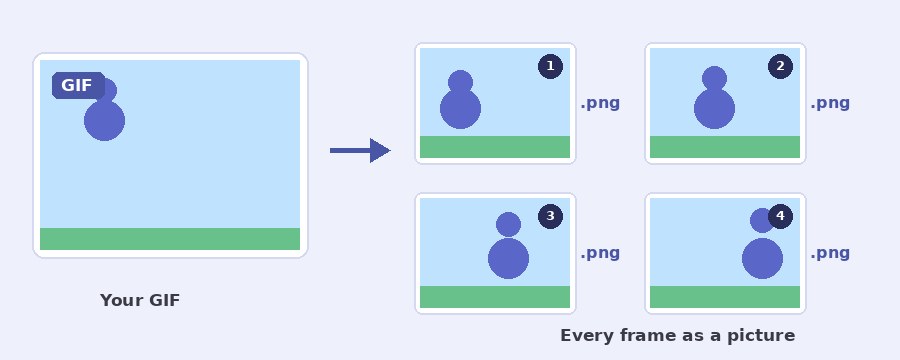
This GIF frame extractor splits an animated GIF into its frames, in your browser. Every frame shows in a grid with its number, the moment it plays and how long it stays, and each one can be saved as a PNG or a JPG. Take them all in one ZIP, one in every few, or only the ones you tick, or lay the chosen frames out on a single sprite sheet.
How do I extract the frames from a GIF?
- Select GIF. Click the button or drop the file on the box. The frames appear in a grid, each with its number, its moment and how long it plays.
- Pick PNG or JPG. PNG keeps see-through parts and every colour as it is. JPG makes smaller files and puts the colour you choose behind the frame.
- Choose which frames. All of them, one in every few (set the number), or only the ones you tick. Tapping any frame in the grid ticks it, and with a mouse you can drag a box over a group of frames or Shift+click the two ends of a run, as you would with files on a computer.
- Download frames as ZIP. The files are named after the GIF with the frame number, such as dance-frame-007.png. The download icon at the bottom right of a frame saves that one picture on its own, and Download as one sprite sheet puts the chosen frames side by side in one picture.
Does each frame come out as the full picture?
Yes. A GIF often stores only the part of a frame that changed since the one before, and tells the player whether to keep or clear the rest. Pull those frames out raw and you get slivers and holes. The extractor plays the GIF the way a browser does and saves what is on screen at each moment, so every file is the whole picture, at the GIF's own size, with the see-through parts kept when you save as PNG.
What is a sprite sheet and when do I want one?
A sprite sheet is one picture with the frames laid out in a grid, left to right and then down. Games, web animations and video editors read a sheet like that and play it back frame by frame, which is cheaper than loading a stack of files. The sheet here is near square, so 48 frames of 200 by 150 pixels come out as 7 across and 7 down. The size of each frame and the size of the whole sheet are printed under the button once it is saved, because that is what the playing code needs to know.
A sheet keeps every frame at the GIF's own size unless the whole grid would pass 8192 pixels on a side, the most a browser can draw. Then the frames are scaled down evenly and the note says so.
Which frames should I take?
For a single still, a meme or a thumbnail, find the moment in the grid and press the download icon on it. For every frame, leave All selected. GIFs made from video often hold a lot of near-identical frames, and One in every 2 or 3 halves or thirds the pile with nothing lost to the eye. When you want a few exact moments, tick them and the count under the buttons keeps track.
To put frames back together after you have edited some of them, the images to GIF maker takes the pictures in order, and the GIF editor removes frames from the GIF without taking it apart. If a frame is only wanted at a smaller size, the GIF resizer can shrink the whole GIF first.
Your GIF stays on your device
Nothing is uploaded. The GIF is read, the frames are drawn and the ZIP and sprite sheet are written by the page itself, in your own browser. No server sees your file, there is no account and no watermark. The page downloads its own code and sends nothing back, and closing the tab leaves nothing behind.
Frequently Asked Questions
Why do some frames look the same?
Many GIFs store a frame that only changes a small part of the picture, or repeat a frame to hold a pose. The extractor gives you every frame as the full picture at that moment, so a held pose comes out as two or three near-identical files. Use "One in every" or tick the frames you want to skip the doubles.
Can I get the frames from a video?
Yes. Drop an MP4 or WebM in the box. It is read at 10 frames a second, at up to 640 pixels on the longer side, and every one of those frames shows in the grid ready to save.
How many frames can it handle?
The tool sets no limit. Every frame is kept in memory as a full picture, so a long GIF at a large size needs more memory, and a phone manages less than a desktop. Frames wider than 1600 pixels are scaled down to 1600.
Is the timing of each frame kept anywhere?
Each frame in the grid shows the moment it plays and how long it shows, to the hundredth of a second. The saved pictures carry no timing, because PNG and JPG have none, so note the times before you rebuild the animation elsewhere.