Add Image to GIF
Put a picture, logo or sticker on your animated GIF, move it where you want and download one GIF. Nothing is uploaded.
 Download GIF
This tool puts a picture on an animated GIF and gives you back one GIF, made in your browser. Drag the image wherever you want it, make it see-through for a watermark, or keep the GIF whole and set the two in a row or a column. The GIF keeps playing underneath, and there is no watermark of ours and no sign-up.
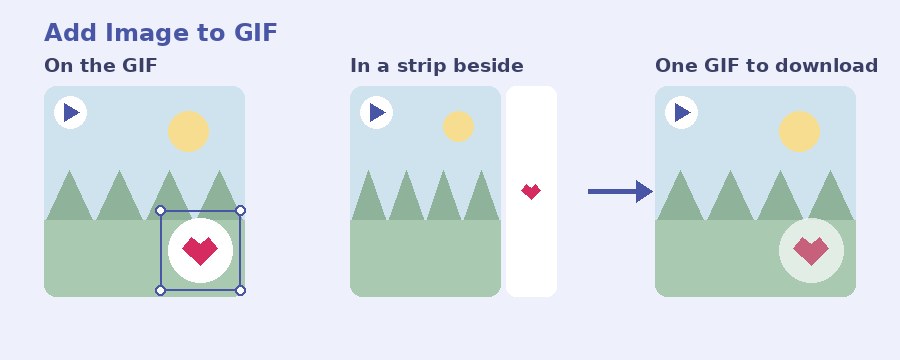
How do I add an image to a GIF?
- Select GIF. Click the first box or drop your GIF on it. A short MP4 or WebM works here too, and the editor opens once the second box is filled.
- Select image. The second box takes the picture you want on the GIF: a PNG, JPG or WebP, or another GIF if you want an animated sticker.
- Put it where you want it. Drag the image on the GIF, pull a corner to resize it, use the round handle under it to turn it, and set See-through for a watermark look. The preview plays as you go, so what you see is what you get.
- Download GIF. A popup shows the progress, then your GIF. Rename the file if you like and press Download GIF.
On the GIF, in a row, in a column or one by one?
On the GIF lays the image over the moving picture, which is what most people want: a logo in a corner, a sticker on a face, a small photo in the frame.
In a row and In a column leave the GIF untouched and give the image a strip of its own next to it, so nothing is covered. The result grows to make room. The list of layers is the order they sit in: move the image above the GIF and its strip goes on top, or on the left in a row, and the GIF's own row can be picked to size its strip too. You set how big each strip is and what colour it is.
One by one plays them in turn: the image shows for the seconds set on its row, then the GIF plays, or the other way round. Move the rows to change the order, the GIF included.
On the GIF, the bottom row of the list is the picture the others sit on. Move the GIF's row up and the image that was under it becomes the background, with the GIF as a sticker on it, which is the same thing the add GIF to photo tool does the other way round.
How do I put a logo or a watermark on a GIF?
Add the logo as the image, drag it into a corner and pull a corner handle until it is small enough to sit out of the way. Then move See-through to somewhere between 50 and 70 percent: the logo stays readable but the GIF shows through it, which is what a watermark looks like. A PNG with a see-through background is the best file for this, because only the logo itself is drawn, with no white box around it.
Keep the logo clear of the busiest part of the frame. A moving background makes a small mark hard to read, and a corner that barely changes, the sky or a wall, keeps it legible for the whole loop.
Can I add more than one image, or an animated sticker?
Both. Add in the Layers list brings in as many pictures as you want, and each is a layer of its own: pick one in the list to move it, fade it or resize it without touching the others. The rows are the stacking order, so the top row is in front.
If the picture you add is itself a GIF, it keeps playing on top of the other one, and its row gets a Speed of this GIF setting. The result runs as long as the slowest of them, and every layer keeps its own timing.
What size is the finished GIF?
The GIF sets the size. A 480 by 270 GIF gives a 480 by 270 result with the image on it, and a strip adds to that. Anything wider or taller than 1600 pixels is brought down to 1600 when you add it, which keeps the GIF quick to make and easy to send.
Shape gives the finished GIF a square, 4:5 post, 9:16 story or 16:9 wide frame, whichever way the pictures go together: on the GIF the picture is reshaped, and in a row, a column or one by one the whole set is fitted into the frame. If it does not fit decides whether everything is shown with space around it or fills the frame with the edges cropped. The line under the preview always says the real size, length and frame count before you make anything.
How big is the file, and can I make it smaller?
A GIF stores every frame as a picture, so the file grows a little when a logo is drawn into each frame, and a lot more when the layer is itself a GIF or the result grows a strip. The download popup has a Make it smaller button that is deliberately gentle, so the picture keeps its quality. For a set size in KB or MB, put the result through the GIF compressor, where you choose how hard to squeeze. For words rather than a picture, there is the GIF caption maker.
Your GIF and your picture stay on your device
Nothing is uploaded. Your GIF and your image are read, placed and joined by the page itself, on your own device, and the finished GIF is made there too. No picture of yours is sent anywhere, and closing the tab leaves nothing behind. It is free, with no account, no watermark and no cap on how many GIFs you make.
Frequently Asked Questions
Does the GIF keep moving with the image on it?
Yes. The GIF plays as before and the image sits on top of it, or beside it, in every frame. The result is a new GIF that plays wherever GIFs play: WhatsApp, Discord, Slack, a web page.
Can I make the image see-through, like a watermark?
Yes. Pick the image in the list and move the See-through slider. At 50 to 70 percent a logo reads as a watermark: there, but not in the way of the picture. A PNG with a see-through background keeps it, so only the logo itself shows.
Can I add an image to a GIF on my phone?
Yes. The page works in the phone browser. Drag the image with one finger, pull a corner to resize it, and the GIF stays at the top of the screen while you change the settings under it.
What happens to a very large GIF?
A GIF wider or taller than 1600 pixels is brought down to 1600 pixels when you add it, and the finished GIF is kept to 1600 pixels on its longer side. A huge GIF is slow to make and slow to send, and nothing on a phone screen shows more than that anyway.